
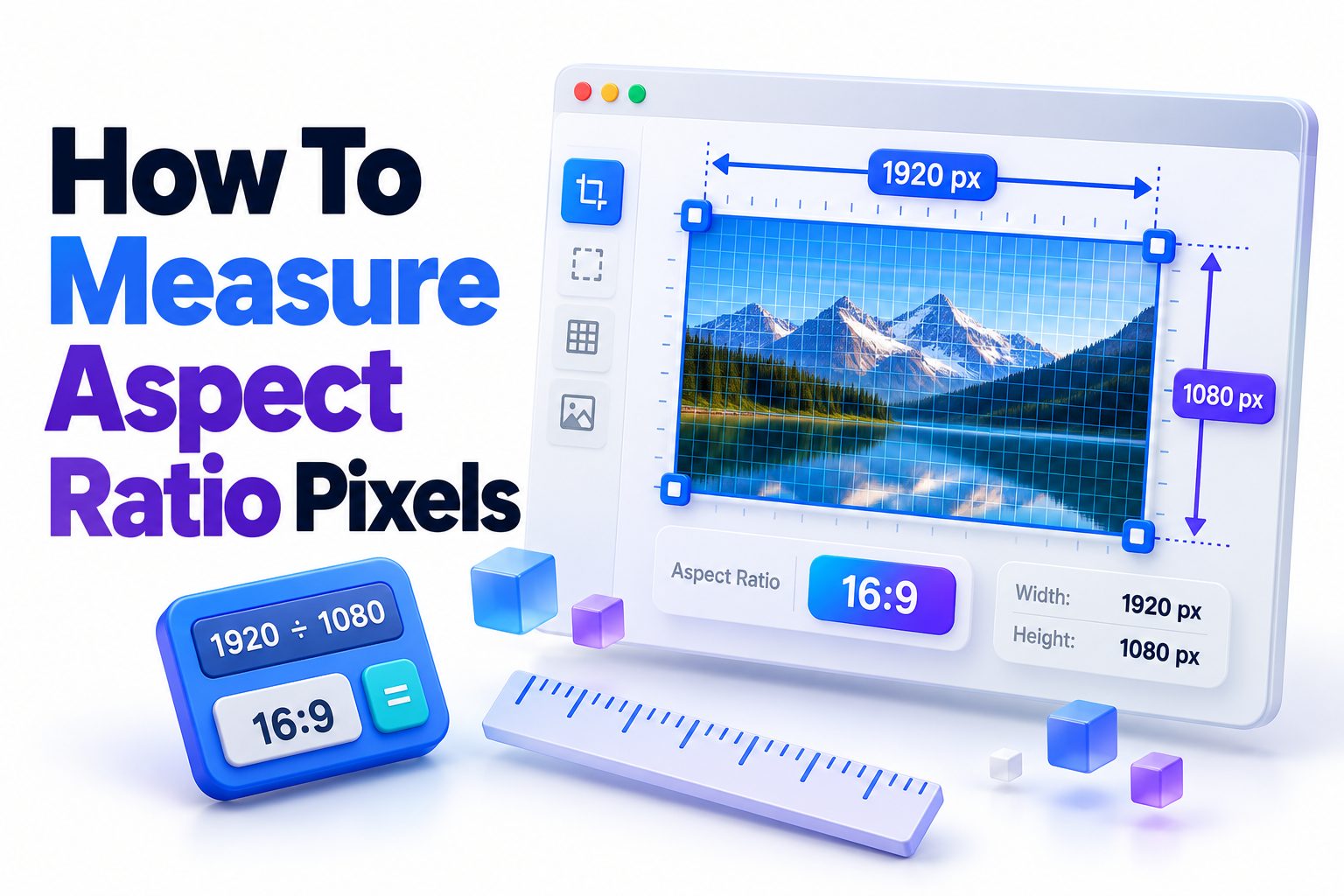
Aspect ratio describes the proportional relationship between an image’s width and height. To learn how to measure aspect ratio pixels, start with the pixel dimensions, divide both numbers by their greatest common divisor, and write the simplified values as width:height. An image measuring 1920 × 1080 pixels, for example, has a 16:9 aspect ratio because both dimensions divide evenly by 120.
The calculation is simple, but using the result correctly requires a little context. Pixel dimensions tell you the exact number of pixels in a file, while aspect ratio tells you its shape. Two images can have very different resolutions yet share the same proportions. A 1280 × 720 image and a 3840 × 2160 image are both 16:9.
This article explains how to calculate an exact ratio, estimate a familiar standard ratio, resize an image without distortion, and handle dimensions that do not simplify neatly. You will also find practical examples for photos, videos, screens, websites, and social media content.
Aspect Ratio and Pixel Dimensions Explained
Pixel dimensions are normally written as width × height. A photo listed as 3000 × 2000 pixels is 3,000 pixels wide and 2,000 pixels high. Those values describe resolution, not aspect ratio, although they provide the numbers needed to calculate it.
Aspect ratio expresses the same dimensions as a proportional relationship. It uses a colon rather than a multiplication sign, so 3000 × 2000 becomes 3:2. The ratio describes the frame’s shape regardless of how large or detailed the image is.
A square image has equal width and height, producing a 1:1 ratio. A landscape image has a larger first number, such as 16:9, while a portrait image has a larger second number, such as 9:16. Orientation changes when the width and height are reversed.
Aspect Ratio Is Not the Same as Resolution
Resolution indicates how much pixel information an image or video contains. A 3840 × 2160 video contains four times as many pixels as a 1920 × 1080 video, giving it more potential detail. Both files still use the same 16:9 frame shape.
Aspect ratio does not reveal image quality, sharpness, file size, or print clarity. A 160 × 90 thumbnail and a 4K frame can share a ratio despite having dramatically different detail. Treat resolution and proportion as related measurements with different purposes.
The Basic Aspect Ratio Formula
The basic formula is width divided by height:
Aspect ratio value = width ÷ height
For a 1920 × 1080 image, the calculation is 1920 ÷ 1080, which equals approximately 1.7778. That decimal corresponds to 16:9 because 16 ÷ 9 also equals approximately 1.7778.
A decimal value is useful for comparing proportions, but the width:height format is easier to recognize and communicate. Reducing both pixel dimensions by their greatest common divisor produces the exact integer ratio whenever the dimensions share a common factor.
For example:
1920 ÷ 120 = 16
1080 ÷ 120 = 9
The simplified aspect ratio is 16:9.
The order matters. Always place width first and height second unless a platform explicitly uses a different convention. Writing 9:16 for a 1920 × 1080 landscape image would incorrectly describe a vertical frame.
Quick Reference for Common Ratios
- 1:1 — Square profile images, thumbnails, and product tiles
- 4:3 — Older televisions, presentation slides, tablets, and many digital cameras
- 3:2 — Traditional 35 mm photography and many DSLR or mirrorless cameras
- 16:9 — Widescreen monitors, televisions, online video, and presentation slides
- 21:9 — Ultrawide displays and cinematic-style video
- 9:16 — Vertical mobile video, Stories, Shorts, and Reels
- 4:5 — Portrait-oriented social media posts
Calculating Aspect Ratio From Pixel Dimensions
The most reliable manual method is to simplify the width and height using their greatest common divisor, often abbreviated as GCD. The GCD is the largest whole number that divides both dimensions without leaving a remainder.
Follow these steps:
1. Find the image or video dimensions in pixels.
2. Write them in width × height order.
3. Determine the greatest common divisor of both numbers.
4. Divide the width and height by that divisor.
5. Write the results as width:height.
Consider an image measuring 2400 × 1600 pixels. The greatest common divisor is 800. Dividing both values by 800 gives 3 and 2, so the image has a 3:2 aspect ratio.
Finding the Greatest Common Divisor
For familiar dimensions, you may spot the common factor immediately. When the numbers are less obvious, use repeated division or a calculator with a GCD function. The Euclidean algorithm also finds the divisor efficiently by repeatedly calculating remainders.
Take 2560 × 1440 as an example. Its greatest common divisor is 160. Dividing 2560 by 160 gives 16, while dividing 1440 by 160 gives 9. The final ratio is therefore 16:9.
Some dimensions reduce to large or unfamiliar numbers. A 1000 × 667 image has a GCD of 1, producing an exact ratio of 1000:667. Its decimal ratio is about 1.499, making it extremely close to 3:2, whose decimal value is 1.5.
Exact Ratios Versus Standard Ratios
An exact pixel ratio describes the dimensions mathematically without approximation. A standard ratio identifies the familiar format that the dimensions most closely match. These are not always identical because files may have been cropped, exported, scanned, or rounded by one or two pixels.
For most visual production, identifying a near-standard ratio is more useful than reporting an awkward exact ratio. A 1920 × 1078 frame is technically 960:539, but it is probably intended to be 16:9. The two-pixel difference may have resulted from trimming or an export setting.
Use the exact ratio when precision matters, such as interface layout, image validation, or technical troubleshooting. Use the nearest standard ratio when discussing photography formats, display shapes, or content requirements—provided the small discrepancy is acknowledged.
Practical Calculation Examples
The following examples show how common pixel sizes
Pixel dimensions | Simplification | Aspect ratio | Typical use
1080 × 1080 | Divide by 1080 | 1:1 | Square social post
1200 × 800 | Divide by 400 | 3:2 | Landscape photograph
1600 × 1200 | Divide by 400 | 4:3 | Camera image
1920 × 1080 | Divide by 120 | 16:9 | Full HD video
1080 × 1920 | Divide by 120 | 9:16 | Vertical video
1080 × 1350 | Divide by 270 | 4:5 | Portrait social post
2560 × 1080 | Divide by 120 | 64:27 | Ultrawide display
3440 × 1440 | Divide by 80 | 43:18 | Ultrawide monitor
Notice that commercial labels do not always match the exact mathematical ratio. A 3440 × 1440 monitor is commonly marketed as 21:9, but its precise reduced ratio is 43:18, or about 2.389:1. The 21:9 label refers to a broader ultrawide format category.
Measuring an Image’s Pixel Dimensions
Before calculating anything, you need the file’s width and height. Most operating systems display these values in file properties. On Windows, right-click the image, select Properties, and open the Details tab. Look for Dimensions, Width, and Height.
On macOS, select the file in Finder and choose Get Info. The dimensions appear under More Info. Preview can also display image size through Tools and Show Inspector. Phones usually show dimensions in the photo information panel, although menu names vary by device and operating system.
Image-editing applications display dimensions in their image-size, document-properties, or canvas-size controls. Browser developer tools can reveal the natural size of a webpage image, which may differ from its displayed CSS size. Use the natural dimensions when measuring the source file’s ratio.
Measuring Screens and Physical Objects
A screen’s advertised size is usually its diagonal measurement, not its pixel dimensions. To calculate the display’s pixel aspect ratio, use its native resolution, such as 2560 × 1440. Do not divide the physical width by its diagonal size.
For a physical frame, print, or projection surface, measure the visible width and height in the same unit. Inches, centimeters, and millimeters all work as long as both measurements use the same unit. The resulting physical aspect ratio can then be compared with the content’s pixel ratio.
A 12-inch-wide print that is 8 inches high has a 3:2 ratio. A 3000 × 2000-pixel photograph also has a 3:2 ratio, so it fits the print without cropping. Pixel density affects sharpness, but it does not change those proportions.
Measurement Checklist
- Confirm that the first number represents width.
- Use the source file’s natural dimensions rather than its scaled display size.
- Check the native resolution when measuring a screen.
- Measure physical width and height in the same unit.
- Account for borders, mats, or non-display areas when measuring frames.
- Decide whether you need the exact ratio or the nearest standard format.
- Recheck rotated images because orientation may swap the dimensions.
Using Decimal Values to Identify a Ratio
Decimal ratios make it easier to compare unusual dimensions with common formats. Divide width by height, then compare the result with standard values. A landscape 16:9 frame equals about 1.7778, while 4:3 equals about 1.3333.
Common decimal equivalents include:
- 1:1 = 1.000
- 5:4 = 1.250
- 4:3 = 1.333
- 3:2 = 1.500
- 16:10 = 1.600
- 16:9 = 1.778
- 1.85:1 = 1.850
- 2.39:1 = 2.390
For portrait dimensions, dividing width by height gives a value below 1. A 9:16 vertical image equals 0.5625. You can also divide height by width to get 1.7778, but clearly state that you reversed the calculation to avoid confusion.
Allowing for Rounding and Small Differences
Not every image will match a standard ratio exactly. Cropping a photo by a few pixels, compensating for codec requirements, or exporting from a particular application can create slight differences. An image measuring 1080 × 1918 is very close to 9:16 even though it does not reduce to that ratio.
A practical tolerance depends on the project. For casual identification, a difference below roughly one percent is often close enough to classify the file by its intended standard. For automated layouts, ad submissions, print production, or broadcast delivery, follow the exact specifications instead.
You can compare the difference with this calculation:
Percentage difference = absolute difference between decimal
For 1080 × 1918, the decimal ratio is approximately 0.5631. The target 9:16 value is 0.5625. The difference is about 0.11 percent, so the image is visually almost indistinguishable from true 9:16.
Resizing While Preserving Aspect Ratio
To resize an image without stretching it, change one dimension and calculate the other from the original ratio. For a 16:9 image, multiply the new width by 9 and divide by 16 to find the matching height.
New height = new width × original height ÷ original width
Suppose you want to resize a 1920 × 1080 image to 1200
1200 × 1080 ÷ 1920 = 675
The correct new size is 1200 × 675 pixels. Both dimensions remain proportional, so circles stay circular and people do not appear unnaturally narrow or wide.
To calculate a new width from a chosen height, reverse the
New width = new height × original width ÷ original height
For a 16:9 image with a new height of 900 pixels, the width is 900 × 16 ÷ 9, which equals 1600 pixels.
Most image editors provide a link, chain, lock, or “constrain proportions” control. Keep it enabled while resizing. For more guidance on output quality and pixel density, see [Internal Link: Image Resolution and Resizing].
Quick Resizing Tips
- Enter only one new dimension when proportional scaling is enabled.
- Round fractional pixel results to the nearest whole number.
- Avoid enlarging small raster images far beyond their original dimensions.
- Check the final width and height after exporting.
- Use cropping when the destination requires a different frame shape.
- Never force both dimensions independently unless distortion is intentional.
Cropping to a Different Aspect Ratio
Resizing changes an image’s dimensions while retaining its shape. Cropping removes content so the image can adopt a different shape. If a 3:2 photograph must fit a 16:9 video frame, proportional resizing alone cannot make it fit perfectly.
You have three main choices: crop part of the image, add empty space around it, or allow distortion. Cropping is generally the cleanest visual option, although it can remove important details near the edges. Padding preserves the full image but creates borders or background space.
To calculate a crop from a fixed width, divide that width by the target decimal ratio. A 3000-pixel-wide image cropped to 16:9 needs a height of 3000 ÷ 1.7778, or approximately 1688 pixels. Any extra height must be removed from the top, bottom, or both.
Position the crop based on the subject rather than automatically centering it. Faces, text, products, and action near an edge may need extra space. Many social platforms also overlay buttons or captions, making safe placement as important as the nominal ratio.
Choosing Between Crop, Fit, and Fill
A “fit” operation scales the entire image inside the destination frame. It preserves all content but can leave bars along two sides when the source and destination ratios differ. The bars may be transparent, black, white, or filled with a designed background.
A “fill” operation scales the image until the destination is completely covered, then crops overflow. No bars remain, but some content is lost. A “stretch” operation forces the source into the frame and should usually be avoided because it changes the subject’s proportions.
Use this decision guide:
- Choose crop or fill when edge-to-edge coverage matters most.
- Choose fit when retaining every part of the source is essential.
- Choose padding when borders can become part of the design.
- Choose a redesigned composition when important elements would be cut off.
- Choose stretching only for abstract textures or cases where distortion is harmless.
Aspect Ratios for Web and Social Content
Web layouts often display one image at several sizes. Responsive CSS can scale an image while preserving its natural proportions, but fixed containers may crop it. Knowing both the source ratio and container ratio helps prevent unexpected clipping and layout shifts.
Modern CSS supports the aspect-ratio property for reserving proportional space. A browser can maintain a 16:9 container at different widths without relying on a single fixed pixel size. The source still needs enough resolution to look sharp on larger or high-density screens.
Social platforms use different frame shapes for feeds, stories, thumbnails, and video players. Their specifications can change, so confirm current requirements before producing final assets. Keep essential text and faces away from edges because interface elements may cover portions of the image.
When preparing several formats, create separate crops from a high-resolution master rather than repeatedly cropping exported files. A square post, vertical story, and widescreen thumbnail rarely share a composition that works unchanged. [Internal Link: Social Media Image Sizes] can support a platform-specific production workflow.
Pixel Aspect Ratio in Video
Most modern images and computer displays use square pixels, meaning each individual pixel has a 1:1 shape. In older video systems and certain professional formats, pixels can be rectangular. This introduces a separate concept called pixel aspect ratio, or PAR.
Display aspect ratio describes the visible frame. Storage aspect ratio describes the width and height recorded in pixels. Pixel aspect ratio describes the shape of each stored pixel. These measurements can differ, and playback software may stretch stored footage to its intended display shape.
The relationship is:
Display aspect ratio = storage aspect ratio × pixel aspect
For ordinary photos, website graphics, smartphone videos, and modern HD or 4K footage, you can usually assume square pixels. When working with standard-definition broadcast archives, anamorphic footage, DVDs, or specialized exports, inspect the file’s metadata before judging its visible ratio from pixel dimensions alone.
Important Video Facts
- 1920 × 1080 with square pixels displays as 16:9.
- 1440 × 1080 may also display as 16:9 when anamorphic pixels are used.
- Resolution alone may not reveal the intended display shape of legacy footage.
- Video-editing software normally reads pixel-aspect metadata automatically.
- Incorrect metadata can make people and objects look too wide or too narrow.
- Export settings should match the delivery platform’s required pixel aspect ratio.
Common Aspect Ratio Mistakes
One frequent mistake is confusing dimensions with ratio. Writing “1920:1080 aspect ratio” communicates the relationship, but it is not simplified. The standard ratio is 16:9, while 1920 × 1080 is the pixel resolution.
Another error is dividing height by width for one image and width by height for another. Pick a consistent convention. Width divided by height is standard for landscape formats and produces familiar decimal values such as 1.778 for 16:9.
Measuring the visible size of an image on a webpage can also produce misleading results. CSS may resize or crop the file. Check its intrinsic dimensions or download the source before calculating. A 1200 × 800 image displayed in a 400 × 400 container remains a 3:2 source, even if only a square portion is visible.
Rounding too early creates avoidable errors. Keep several decimal places during calculations and round only the final pixel value. This matters when generating large assets, where a small mathematical discrepancy can become a visible gap or trigger a platform validation error.
Troubleshooting Mismatched Dimensions
If an uploaded image appears stretched, confirm that the software is not forcing it into fixed width and height values. Reset one dimension to automatic, enable proportional scaling, or use object-fit settings appropriate to the layout.
If an image is unexpectedly cropped, compare the source and container ratios. A 4:3 source cannot completely fill a 16:9 frame without losing content. Switch from fill to fit, change the container ratio, or create a deliberate crop.
Thin bars around video usually indicate a small ratio mismatch. A near-16:9 frame may still leave a line at the edge after scaling. Crop a few pixels, use a background fill, or export at an exact delivery size rather than stretching the frame.
When a calculated ratio looks unusually complicated, inspect the file for prior cropping or slight export adjustments. Compare its decimal ratio with common standards. The awkward result may be mathematically correct while still representing a familiar format with a minor difference.
Best Practices for Accurate Results
Use original file dimensions whenever possible. Screenshots, messaging apps, content-management systems, and social networks may compress or resize uploaded media. Calculating from a derivative can identify that derivative’s ratio but not necessarily the original asset’s dimensions.
Record both the simplified ratio and the pixel resolution in production notes. “16:9 at 1920 × 1080” is more useful than either measurement alone because it communicates frame shape and output size. For video, include frame rate and pixel-aspect information when relevant.
Create templates for frequently used formats and lock their proportions. Templates reduce arithmetic errors, keep campaigns visually consistent, and make it easier to produce alternate crops. Leave safe space around essential elements so the same composition can adapt to several placements.
Before delivery, inspect the actual exported file rather than relying entirely on document settings. Confirm its pixel dimensions, orientation, ratio, and appearance. Export options, automated resizing, and metadata handling can alter the final result after the design stage.
Final Accuracy Checklist
- Verify width and height from the exported file.
- Divide width by height to obtain the decimal ratio.
- Simplify both values with their greatest common divisor.
- Compare unusual results with nearby standard ratios.
- Confirm that proportional resizing remained enabled.
- Check whether cropping removed essential content.
- Inspect pixel-aspect metadata for legacy or anamorphic video.
- Test the asset inside its real destination when possible.
Conclusion
Measuring an aspect ratio starts with two values: the pixel width and pixel height. Reduce those dimensions by their greatest common divisor to obtain an exact width:height ratio, or divide width by height to compare the result with common formats. For example, 1920 × 1080 simplifies to 16:9 and produces a decimal value of about 1.778.
The key to learning how to measure aspect ratio pixels is separating proportion from resolution. Aspect ratio describes shape, while resolution describes the number of pixels available. Images with different resolutions can therefore fit the same frame without sharing the same level of detail.
When resizing, calculate the second dimension from the first or enable proportional scaling. When the required ratio differs from the source, choose deliberately between cropping, fitting, and adding padding. Small deviations may represent rounding or minor trimming, but exact specifications should be followed for technical deliveries. Finally, check the exported asset—not only the editing document—to confirm that its dimensions, orientation, and visible composition are correct.
Frequently Asked Questions
Can aspect ratio be calculated from pixels
Yes. Divide the pixel width and height by their greatest common divisor, then write the results as width:height. For instance, 1600 × 900 divides by 100 to produce a 16:9 ratio.
What aspect ratio is 1920 × 1080?
The aspect ratio is 16:9. Both dimensions divide evenly by 120, producing 16 and 9. This resolution is commonly called Full HD and uses the standard widescreen format for monitors, televisions, and video.
What happens when dimensions do not simplify neatly?
The exact ratio may contain large numbers, such as 1000:667. Divide width by height and compare the decimal with standard ratios. In this example, the result is about 1.499, making it effectively 3:2 for most practical uses.
Does changing resolution change aspect ratio?
Not necessarily. Proportional resizing changes the pixel count while retaining the ratio. A 1920 × 1080 image and a 1280 × 720 image are both 16:9, although the first contains more pixels and potentially more detail.
How can I find a missing pixel dimension?
Use the known dimension and the target ratio. For 16:9, multiply a known width by 9 and divide by 16 to find height. Multiply a known height by 16 and divide by 9 to find width.