
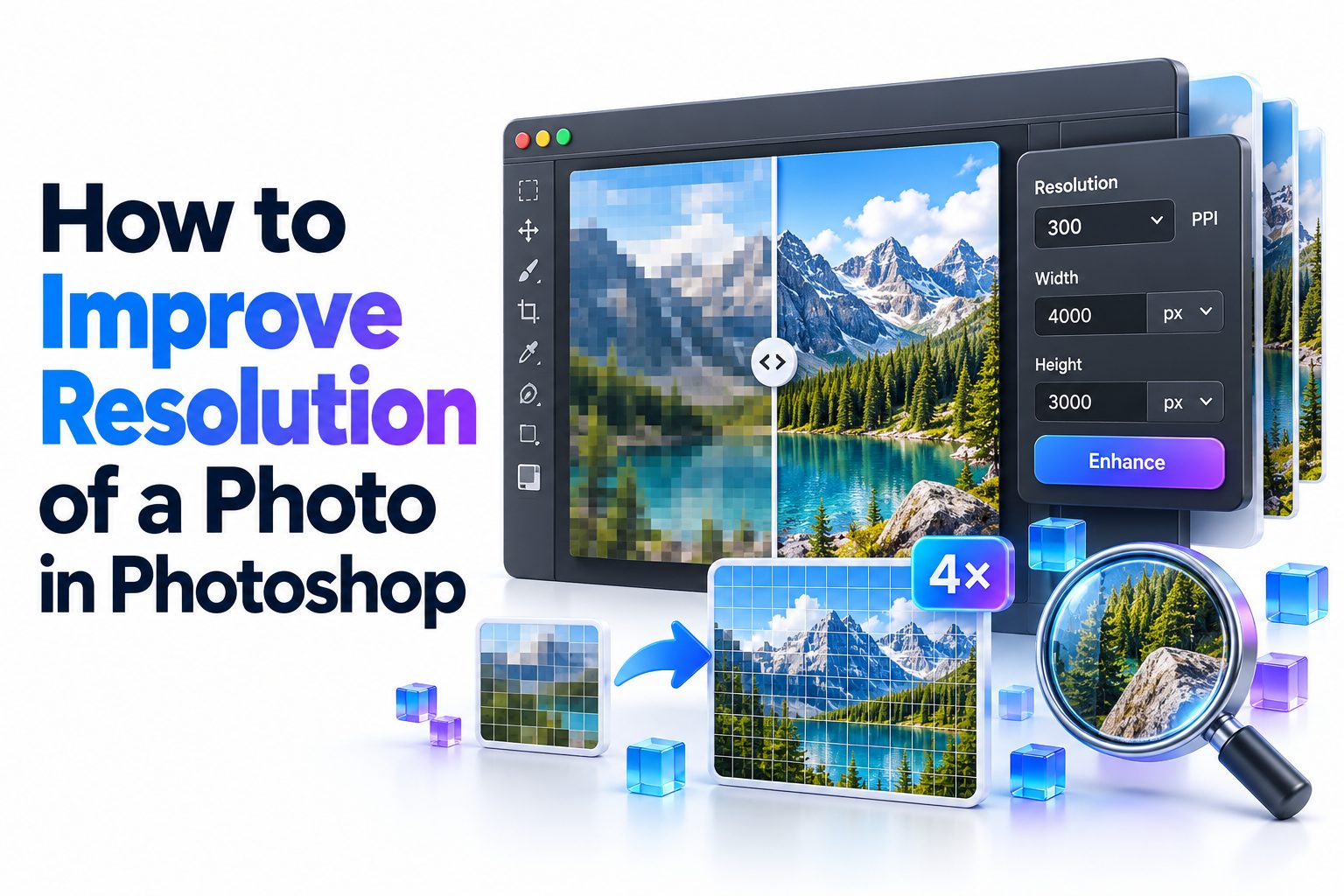
Improving a photo’s resolution in Photoshop is not as simple as adding more pixels. The best results come from choosing the right resampling method, controlling sharpening, and matching the image dimensions to its final use. A photograph intended for an online store needs different treatment from one being enlarged for a poster.
This article explains how to improve resolution of a photo in Photoshop using Image Size, Preserve Details 2.0, Camera Raw Super Resolution, and other practical tools. You will learn how to check the original file, enlarge it without unnecessary quality loss, sharpen the result, and prepare it for web or print.
It is important to set realistic expectations. Photoshop can create new pixels and make a photograph look cleaner at a larger size, but it cannot perfectly reconstruct detail that the camera never captured. A slightly undersized, well-focused image often responds well to enlargement. A heavily blurred, compressed, or extremely small file requires more careful handling and may still show visible limitations.
What Photo Resolution Actually Means
Photo resolution is often described using pixel dimensions, such as 3000 × 2000 pixels. Those dimensions reveal how much image data the file contains. Multiplying them gives the total pixel count, so a 3000 × 2000 image contains six million pixels.
PPI, or pixels per inch, describes how closely those pixels are arranged when the image is printed. It does not automatically change the amount of detail in the file. A 3000 × 2000 image contains the same pixels whether its resolution field says 72 PPI or 300 PPI.
Pixel Dimensions and Print Resolution
Pixel dimensions have the greatest effect on how large a photograph can appear before individual pixels or softness become noticeable. More original pixels generally allow a larger display or print, assuming the photograph is sharp and properly exposed.
Print dimensions depend on both pixel count and PPI. A 3000-pixel-wide photograph prints at 10 inches when set to 300 PPI. At 150 PPI, the same file can print 20 inches wide, although viewers may notice less fine detail at close range.
Resampling and Resolution Changes
Resampling changes the actual number of pixels. When you enlarge a photo with resampling enabled, Photoshop generates additional pixels based on the surrounding image information. When you reduce it, Photoshop removes pixels while trying to preserve edges and recognizable detail.
Changing only the PPI value with Resample turned off does not improve image quality. It simply changes the relationship between pixels and print dimensions. This distinction prevents one of the most common mistakes people make when preparing photographs for printing.
Preparing the Original Photo
Begin with the best source file available. A RAW file, TIFF, PNG, or high-quality JPEG usually provides more useful information than an image downloaded from social media. Messaging apps and websites often resize and compress uploads, permanently removing texture and color detail.
Inspect the photograph at 100% magnification before enlarging it. Look for motion blur, missed focus, blocky JPEG artifacts, noise, halos, and clipped highlights. Enlargement makes these defects easier to see, so correcting obvious problems beforehand usually produces a cleaner result.
Protecting the Original File
Open the image and choose File, then Save As, or create a duplicate before making major changes. Keeping the original untouched allows you to compare different enlargement methods and restart if sharpening, noise reduction, or retouching becomes excessive.
For a flexible workflow, convert the image layer to a Smart Object. Right-click the layer in the Layers panel and select Convert to Smart Object. Smart Objects preserve the source data and allow many filters to be adjusted later instead of permanently changing pixels.
Choosing the Best Starting File
Use the following order when several versions of the same
- Original RAW file from the camera
- Full-resolution TIFF or PSD
- Full-resolution, minimally compressed JPEG
- Full-resolution PNG
- Exported or edited JPEG
- Image downloaded from a website or social platform
Avoid enlarging a thumbnail when a larger version exists. A 400-pixel preview cannot provide the same detail as a 4000-pixel original, even if both appear sharp at their native display sizes.
Resolution Terms at a Glance
Term What it describes
Pixel dimensions Total width and height in pixels Determines how much image data is available
PPI Pixels assigned to each printed inch Affects calculated print size
DPI Printer dots placed within an inch Relates mainly to printer output
Resampling Adding or removing image pixels Changes actual pixel dimensions
Interpolation Method used to estimate new pixels Influences sharpness and artifacts
File size Storage space used by the image Does not directly measure visual quality
Increasing Resolution with Image Size
The Image Size dialog is the most direct option for enlarging a photograph. Open the file, then choose Image and Image Size. Photoshop displays the current width, height, resolution, and approximate file size, along with controls for resampling.
Turn on Resample when you need to add pixels. Keep the chain-link icon active so the width and height remain proportional. Enter the required pixel dimensions or print size, select an appropriate interpolation method, and preview important areas before clicking OK.
Setting Dimensions for the Final Use
For screen use, enter the required pixel width and height rather than concentrating on PPI. A website might require a 1600-pixel-wide banner, while an online marketplace may specify a 2000 × 2000-pixel product image.
For print, enter the physical dimensions and resolution requested by the printer. Many close-viewed prints are prepared around 240 to 300 PPI, but large posters may work well at a lower effective resolution because people view them from farther away.
Choosing a Resampling Method
Automatic lets Photoshop choose an interpolation method based on whether the image is being enlarged or reduced. It is a sensible choice when you want a quick result and do not need to test every option manually.
Preserve Details 2.0 is often better for significant photographic enlargements. Bicubic Smoother can also produce natural results, especially on images with gentle gradients. Nearest Neighbor is intended for hard-edged pixel art rather than ordinary photographs because it creates blocky edges.
Using Preserve Details 2.0
Preserve Details 2.0 is designed to enlarge images while retaining edges and reducing the soft appearance common to basic interpolation. In the Image Size dialog, enable Resample and select Preserve Details 2.0 from the resampling menu.
Use the Reduce Noise slider carefully. A small adjustment can suppress grain that becomes more obvious during enlargement. Too much reduction removes skin texture, hair detail, fabric weave, and other subtle information, leaving the image unnaturally smooth.
Step-by-Step Image Size Workflow
1. Open the highest-resolution version of the photograph.
2. Duplicate the document or convert the image layer to a Smart Object.
3. Choose Image, followed by Image Size.
4. Enable Resample and keep the aspect ratio linked.
5. Enter the required pixel or print dimensions.
6. Select Preserve Details 2.0 or Automatic.
7. Inspect faces, text, edges, and textured areas in the preview.
8. Adjust Reduce Noise only when visible grain requires it.
9. Click OK and evaluate the full image at 100% magnification.
10. Apply final sharpening after the enlargement is complete.
Using Camera Raw Super Resolution
Adobe Camera Raw includes Super Resolution, which doubles the linear dimensions of a compatible image. A 3000 × 2000-pixel file becomes approximately 6000 × 4000 pixels, creating four times the total number of pixels. The enhanced result is saved as a new DNG file.
Super Resolution uses image analysis to produce finer edges and more convincing detail than ordinary interpolation in many photographs. It is particularly useful for cropped wildlife images, landscapes, architecture, and photographs that need moderate enlargement for printing.
Running Super Resolution
Open a supported RAW file in Adobe Camera Raw. You can also open a compatible JPEG or TIFF through Camera Raw when appropriate. Right-click the image preview or use the relevant menu, select Enhance, activate Super Resolution, and review the estimated result.
Choose Enhance to create the new file, then continue making tonal and color adjustments in Camera Raw. Because the process generates a separate DNG, the original remains available. Processing time and resulting file size depend on the source dimensions and computer hardware.
When Super Resolution Works Best
The feature performs best on files with clear edges, low compression, accurate focus, and manageable noise. Fine architectural lines, feathers, foliage, and product details may benefit noticeably, although the degree of improvement varies from image to image.
Severe motion blur, missed focus, and heavy JPEG artifacts remain difficult. Super Resolution may make these flaws larger rather than repairing them. Compare the enhanced version with an Image Size enlargement instead of assuming one method will always be superior.
Photoshop Enlargement Method Comparison
Method Best suited to
Image Size Automatic Routine resizing
Preserve Details 2.0 Moderate or large enlargements
Bicubic Smoother Natural photographic gradients May produce a softer result
Camera Raw Super Resolution High-quality photos and RAW files Doubles dimensions at a fixed scale
Nearest Neighbor Pixel art and hard-edged graphics Unsuitable for most photographs
Improving Detail with Noise Reduction and Sharpening
Enlargement and sharpening solve different problems. Resampling increases pixel dimensions, while sharpening increases contrast along edges to make detail appear more defined. Applying aggressive sharpening before resizing can enlarge halos and noise, so most output sharpening should happen after the image reaches its final dimensions.
Noise reduction is usually more effective before strong sharpening. Color noise, luminance grain, and compression artifacts become more visible in an enlarged file. A restrained correction gives Photoshop cleaner information to resample without erasing texture that should remain.
Applying Camera Raw Noise Reduction
Choose Filter, then Camera Raw Filter, and open the Detail panel. Adjust the noise reduction controls while viewing the image at 100%. Concentrate on shadow areas, skin, skies, and smooth backgrounds, where noise tends to be most distracting.
Balance reduction against texture. Plastic-looking skin and smeared foliage are signs that the settings are too strong. If the source is a compatible RAW file, Adobe’s Denoise feature may produce a more natural result than heavy manual luminance reduction.
Sharpening the Enlarged Photo
Smart Sharpen provides useful control over Amount, Radius, and noise reduction. Begin with a modest radius and increase the Amount gradually while checking important edges. The right values depend on the image dimensions, subject, enlargement scale, and final viewing distance.
High Pass sharpening offers another controlled method. Duplicate the layer, choose Filter, Other, and High Pass, then set the layer’s blending mode to Overlay or Soft Light. Reduce opacity until the photograph looks crisp without obvious outlines around high-contrast edges.
Sharpening Checklist
- Resize the image before applying final output sharpening.
- Judge sharpening at 100% magnification.
- Check faces, hair, lettering, tree branches, and bright edges.
- Mask smooth areas that do not need sharpening.
- Avoid strengthening grain in skies and shadows.
- Reduce layer opacity if the effect looks harsh.
- Inspect the image again at its expected display or print size.
Preparing High-Resolution Photos for Print
A print file should be prepared for its actual physical size. Open Image Size, turn off Resample, and enter the desired PPI to see the corresponding print dimensions available from the existing pixels. This check reveals whether enlargement is necessary.
For example, a 3600-pixel-wide image produces a 12-inch-wide print at 300 PPI. Printing it 24 inches wide gives an effective resolution of 150 PPI. That may be acceptable for a wall print viewed from several feet away but less suitable for a detailed portfolio print examined closely.
Working with Printer Requirements
Ask the print provider for its preferred dimensions, color space, file type, and resolution. Some services request JPEG files in sRGB, while specialist labs may accept TIFF files and provide custom color profiles. Following the printer’s specifications avoids unnecessary conversions and resizing.
Soft proofing can help anticipate color changes, but it does not determine resolution. For more information about preparing color and contrast accurately, see [Internal Link: How to Prepare Photos for Printing]. Always review the exported file at the size and settings you intend to submit.
Preparing Enlarged Images for the Web
Web images should be sized in pixels. A browser does not need a 300 PPI label to display a sharp photograph; it needs enough pixels for the layout and the viewer’s screen. Exporting excessive dimensions only increases loading time and storage use.
After resizing and sharpening, use Export As or Save for Web when available in your Photoshop version. Choose JPEG for most photographs, PNG when transparency is required, or WebP when supported by the publishing platform. Review compression carefully around hair, text, gradients, and high-contrast edges.
Print and Web Do and Don’t List
Do
- Match pixel dimensions to the website layout.
- Follow the print provider’s resolution requirements.
- Keep an editable PSD or TIFF master file.
- Sharpen separately for web and print output.
- Preview the exported image before publishing or ordering.
Don’t
- Change 72 PPI to 300 PPI and assume detail has increased.
- upload a huge master file when a smaller web image is required.
- repeatedly save and edit the same JPEG.
- apply identical sharpening to every output size.
- judge print quality only from a zoomed-out screen preview.
Common Resolution Problems and Their Fixes
A blocky result usually means the source contains too few pixels or has been heavily compressed. Try locating the original file before applying further edits. If no better source exists, enlarge in moderation and avoid sharpening the square compression blocks.
A soft result may come from interpolation, camera shake, incorrect focus, or excessive noise reduction. Mild sharpening can improve interpolation softness, but it cannot fully correct substantial blur. Test a smaller output size, where the limited detail will be less noticeable.
Jagged Edges and Halos
Jagged diagonal edges can appear after extreme enlargement or unsuitable resampling. Confirm that the image was not resized with Nearest Neighbor. Preserve Details 2.0 or Bicubic Smoother usually gives photographic edges a more natural transition.
Bright or dark outlines around objects indicate oversharpening. Lower the sharpening Amount or Radius, reduce the sharpening layer’s opacity, or use a mask to exclude troublesome edges. Halos are especially visible around buildings, horizons, and subjects photographed against bright backgrounds.
Noise and Artificial Texture
Noise often becomes more obvious because enlargement makes each defect occupy more screen or print space. Apply moderate noise reduction before output sharpening, then avoid sharpening smooth backgrounds. Local masks can protect skies and skin while retaining crisp detail elsewhere.
Some automated enlargement methods create invented texture that looks convincing from a distance but breaks down under close inspection. Watch for irregular eyelashes, distorted text, repeated patterns, and unnatural foliage. Revert to a less aggressive setting when generated detail stops looking plausible.
Common Mistakes When Increasing Photo Resolution
One frequent mistake is enlarging the same file several times during editing. Each resampling pass recalculates pixels and may gradually soften edges. Work from the original or a Smart Object, determine the final dimensions, and perform the main enlargement once.
Another mistake is evaluating only at extreme zoom levels. A print intended for a wall does not need to look flawless at 400% magnification. Judge technical defects at 100%, then assess the photograph at its real display size and likely viewing distance.
Mistakes to Avoid
- Starting with a screenshot when the original photograph is available
- Increasing only the PPI field without enabling resampling
- Enlarging far beyond what the source can support
- Using excessive noise reduction on faces and fine textures
- Sharpening until high-contrast halos appear
- Saving the working master repeatedly as a low-quality JPEG
- Ignoring the final viewing distance
- Exporting before checking the required aspect ratio
The Limits of Resolution Enhancement
Photoshop can interpolate missing pixels, strengthen edges, reduce noise, and improve the apparent clarity of an image. It cannot reliably recover a face that is only a few indistinct pixels wide or restore lettering that was blurred beyond recognition.
Results depend on the quality of the evidence in the source file. A well-focused 12-megapixel photograph can often make an excellent moderate-sized print. A small, compressed image may remain poor even after its dimensions have been increased several times.
When Reshooting Is Better
Reshooting is the strongest option when you control the subject and need genuine detail. Use stable camera support, accurate focus, suitable lighting, a low practical ISO setting, and the camera’s full-resolution or RAW format.
For product photography, artwork reproduction, property listings, and archival work, reshooting prevents hours of uncertain repair. If a new photograph is impossible, set a realistic output size and prioritize a clean, natural appearance over extreme enlargement.
Alternative Enlargement Tools
Dedicated AI upscaling applications can be useful when Photoshop’s results are insufficient, particularly for old photographs or very small files. Their output still requires inspection because generated textures may alter facial features, lettering, or small objects.
Photoshop remains valuable for cleanup, masks, color correction, retouching, and output sharpening even when another tool performs the enlargement. You can compare options in [Internal Link: Best Photo Upscaling Methods] before deciding which process fits the source and final use.
Quick Tips for More Natural Results
- Increase dimensions only as much as the final output requires.
- Compare Preserve Details 2.0 with Super Resolution on difficult files.
- Keep the aspect ratio locked unless intentional cropping is needed.
- Use local masks to sharpen detailed subjects without sharpening noise.
- Inspect people’s eyes, teeth, hair, and fingers for artificial detail.
- Save a layered working file before creating web or print exports.
- Make test prints for important projects.
A Reliable Photoshop Resolution Workflow
Start by identifying the final pixel dimensions or physical print size. Then locate the highest-quality source, inspect it at 100%, and correct major noise or artifacts. This preparation gives the enlargement process stronger information to work with.
Choose Camera Raw Super Resolution for a high-quality source that benefits from doubling its dimensions. Use Image Size with Preserve Details 2.0 when you need a specific output size. After resizing, apply restrained sharpening and export a separate file for the intended destination.
Practical Workflow Summary
1. Define the required output size.
2. Open the best available source file.
3. Duplicate the document or create a Smart Object.
4. Correct distracting noise and compression artifacts.
5. Choose Super Resolution or Image Size resampling.
6. Inspect the enlarged image at 100%.
7. Apply controlled output sharpening.
8. Check the image at its expected viewing size.
9. Export using the appropriate format and color space.
10. Keep the editable master for future versions.
Conclusion
Learning how to improve resolution of a photo in Photoshop begins with separating true image data from print settings. Changing the PPI number alone does not add detail. To increase pixel dimensions, you must enable resampling in Image Size or create an enhanced file with Camera Raw Super Resolution.
Preserve Details 2.0 is a practical choice when you need precise output dimensions, while Super Resolution often performs well with sharp RAW files and other high-quality sources. Whichever method you choose, inspect the original first, reduce distracting noise carefully, and save final sharpening until after enlargement.
The finished image should be judged according to its purpose. Web graphics need appropriate pixel dimensions and efficient compression. Prints need enough effective resolution for their physical size and normal viewing distance. Most importantly, keep expectations realistic. Photoshop can produce a cleaner, larger, and more usable photograph, but it cannot perfectly restore information that was never recorded. A restrained edit made from the best source nearly always looks more convincing than an extreme enlargement covered with artificial detail.
Frequently Asked Questions
Can Photoshop make a low-resolution photo high resolution?
Yes, Photoshop can add pixels through resampling or Super Resolution. It can make a file larger and improve apparent clarity, but it cannot perfectly recreate fine detail lost through blur, cropping, or heavy compression.
What resolution should I use for printing?
Many close-viewed prints are prepared at 240 to 300 PPI. Larger wall prints may use a lower effective resolution because they are viewed from farther away. Confirm the preferred specification with your print provider.
Is Super Resolution better than Preserve Details 2.0?
Neither option is always better. Super Resolution is useful for doubling the dimensions of a strong source file, while Preserve Details 2.0 offers more control when you need exact pixel or print dimensions.
Why does my photo look blurry after increasing resolution?
Photoshop must estimate new pixels during enlargement, which can soften detail. Original focus problems, motion blur, noise reduction, and compression may also become more visible. Apply restrained sharpening after resizing and consider a smaller output.
Does changing 72 PPI to 300 PPI improve quality?
No, not by itself. With Resample turned off, changing PPI only alters the calculated print dimensions. It does not add pixels or detail. Enable resampling when additional pixel dimensions are genuinely required.