
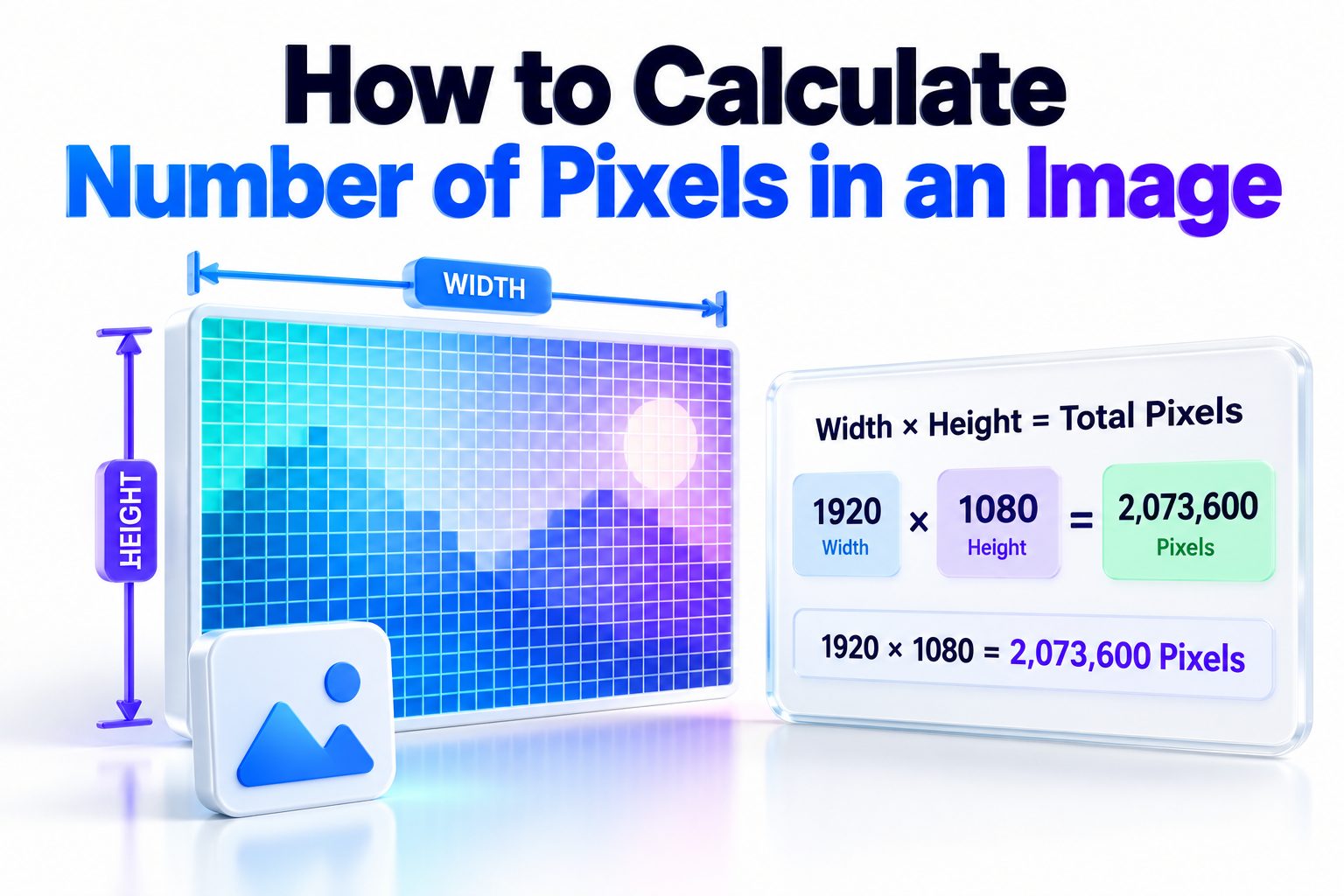
A digital image is made from a grid of tiny colored squares called pixels. To calculate the number of pixels in an image, multiply its width in pixels by its height in pixels. For example, an image measuring 1920 pixels wide and 1080 pixels high contains 2,073,600 pixels. That is also commonly described as approximately 2.07 megapixels.
Learning how to calculate number of pixels in an image is useful when preparing photos for printing, comparing camera resolutions, meeting upload requirements, estimating storage needs, or choosing suitable dimensions for a website. The calculation itself is simple, but pixel-related terminology can create confusion. Image dimensions, megapixels, resolution, DPI, PPI, file size, and aspect ratio describe different properties and are not interchangeable.
This article explains the basic formula, shows how to find an image’s dimensions on common devices, and provides practical examples for photos, screens, websites, and print projects. It also covers frequent calculation mistakes, including the assumption that a larger file automatically contains more pixels. By the end, you will be able to calculate total pixels confidently and interpret the result correctly.
What Pixel Count Means
Pixel count is the total number of individual pixels contained in a raster image. These pixels are arranged in horizontal rows and vertical columns. Image dimensions written as 3000 × 2000 pixels mean that each row contains 3,000 pixels and the image has 2,000 rows.
The total pixel count describes how much spatial image information is available. More pixels can preserve finer details, support larger prints, and allow more aggressive cropping. Pixel quantity does not guarantee quality, though. Focus, lighting, compression, lens performance, and image processing also affect the final appearance.
Raster Images and Vector Graphics
Pixel calculations apply directly to raster formats such as JPEG, PNG, GIF, WebP, TIFF, BMP, and many camera RAW formats. A raster image has fixed pixel dimensions, although software can resample it to create or remove pixels.
Vector graphics, including many SVG, EPS, and AI files, are built from mathematically defined shapes rather than a fixed grid. A vector graphic receives pixel dimensions only when it is rasterized, exported, displayed, or captured at a particular size.
The Basic Pixel Calculation Formula
The formula for calculating the total number of pixels is:
Total pixels = image width in pixels × image height in
Suppose a photograph has dimensions of 4,000 × 3,000
4,000 × 3,000 = 12,000,000 pixels
The image therefore contains 12 million pixels. This calculation includes every position in the rectangular pixel grid, regardless of the colors, transparency, subject matter, or level of detail shown at those positions.
Width and height must both be expressed in pixels before you multiply them. Dimensions measured in inches, centimeters, points, or CSS units cannot be used directly without an additional conversion. When dimensions are already displayed as “px,” no conversion is needed.
Quick Calculation Checklist
Before calculating a pixel count, confirm the following:
- Locate the image’s width and height.
- Make sure both measurements are expressed in pixels.
- Multiply the width by the height.
- Keep the full result when exact numbers are required.
- Divide by 1,000,000 to express the result in megapixels.
- Do not multiply the pixel count by the number of color channels.
- Treat PPI or DPI as separate information unless you are calculating print dimensions.
Converting Total Pixels to Megapixels
One megapixel equals one million pixels. To convert a total pixel count into megapixels, divide the total by 1,000,000:
Megapixels = total pixels ÷ 1,000,000
An image measuring 6000 × 4000 pixels contains 24,000,000 pixels. Dividing that number by one million gives 24 megapixels. This is why a camera that produces images at those dimensions may be marketed as a 24 MP camera.
Not every result is a whole number. A 1920 × 1080 image contains 2,073,600 pixels, which equals 2.0736 megapixels. It is normally rounded to 2.07 MP or 2.1 MP. Rounding is acceptable for a general description, but exact dimensions should be retained for technical specifications or upload requirements.
Why Advertised Megapixels May Differ
Camera specifications sometimes use an approximate or rounded megapixel value. A sensor can also have more physical photosites than the number used to create the final photograph. Some pixels around the sensor’s edge may support calibration or image processing rather than appear in the output file.
Different aspect-ratio settings can change the dimensions produced by the same camera. Selecting a square or widescreen crop may use only part of the sensor, resulting in fewer output pixels even though the hardware’s advertised megapixel rating remains unchanged.
Examples of Pixel Count Calculations
A small website image measuring 800 × 600 pixels contains 480,000 pixels, or 0.48 megapixels. A 2560 × 1440 desktop background contains 3,686,400 pixels, or approximately 3.69 megapixels. In both cases, the same multiplication formula applies.
Large photographs produce much bigger totals. A 7952 × 5304 image contains 42,172,608 pixels, or about 42.17 megapixels. A panorama measuring 12,000 × 4,000 pixels contains 48 million pixels, despite having a much wider shape than a conventional photograph.
Practical Pixel Examples
| Image dimensions | Calculation | Total pixels | Approximate megapixels |
| 640 × 480 | 640 × 480 | 307,200 | 0.31 MP |
| 1280 × 720 | 1280 × 720 | 921,600 | 0.92 MP |
| 1920 × 1080 | 1920 × 1080 | 2,073,600 | 2.07 MP |
| 2560 × 1440 | 2560 × 1440 | 3,686,400 | 3.69 MP |
| 3840 × 2160 | 3840 × 2160 | 8,294,400 | 8.29 MP |
| 4000 × 3000 | 4000 × 3000 | 12,000,000 | 12 MP |
| 6000 × 4000 | 6000 × 4000 | 24,000,000 | 24 MP |
| 7680 × 4320 | 7680 × 4320 | 33,177,600 | 33.18 MP |
Finding Image Dimensions on Different Devices
You do not need specialist editing software to locate an image’s dimensions. Most operating systems display width and height in the file information or properties panel. Be sure to look for pixel dimensions rather than the file’s storage size in kilobytes or megabytes.
Some platforms show dimensions in a compact form such as 4032 × 3024. The first number is normally the width and the second is the height. Portrait images may appear as 3024 × 4032 instead, but multiplication produces the same total pixel count.
Finding Dimensions in Windows
Right-click the image file, select “Properties,” and open the “Details” tab. Look for the Image section, where Windows normally lists dimensions, width, and height in pixels.
File Explorer may also display dimensions in the details pane or as a column. If the information is unavailable, the file may use an unsupported format, lack readable metadata, or be stored only as an online placeholder.
Finding Dimensions in macOS
Select the image in Finder and press Command-I to open the Get Info window. The “More Info” area usually displays the image dimensions. You can also open the file in Preview and select Tools, followed by Show Inspector.
Preview may display pixel dimensions alongside resolution and color information. Use the pixel width and pixel height for the total-pixel calculation, not the resolution value expressed in pixels per inch.
Finding Dimensions on Phones
On an iPhone, open the image in Photos and swipe upward or tap the information button. Recent iOS versions display the image dimensions and other details. On Android, open the photo and check Details, Info, or the three-dot menu; wording varies among manufacturers and gallery apps.
Messaging and social media apps may compress or resize images automatically. Check the dimensions of the actual shared or downloaded copy if that version matters. The photo stored by the receiving device may contain fewer pixels than the original camera file.
Calculating Pixels for Print
Printed size introduces another variable: pixels per inch, or PPI. To determine how many pixels are needed for a print, multiply the intended width and height in inches by the target PPI separately.
For an 8 × 10-inch print at 300 PPI:
8 × 300 = 2,400 pixels
10 × 300 = 3,000 pixels
The required image dimensions are 2400 × 3000 pixels, giving a total of 7,200,000 pixels, or 7.2 megapixels. This target usually provides detailed photographic output when the source image and printing process are good.
Useful Print Resolution Targets
- 300 PPI is a common target for detailed photographs viewed closely.
- 240 PPI often produces strong results for ordinary photo prints.
- 150 PPI may be acceptable for posters viewed from farther away.
- Very large signs can use a lower effective PPI because viewers stand at a greater distance.
- A printer’s DPI specification does not directly equal the image’s PPI.
- Cropping can reduce the pixels available for the final print.
Converting Pixels to Print Size
To find how large an existing image can print at a chosen PPI, divide each pixel dimension by that PPI. A 3600 × 2400-pixel photograph printed at 300 PPI would measure 12 × 8 inches:
3600 ÷ 300 = 12 inches
2400 ÷ 300 = 8 inches
The same file could print at 18 × 12 inches at 200 PPI. It would not gain or lose pixels merely because the print dimensions changed. Instead, the existing pixels would be distributed more or less densely across the paper.
This relationship is useful when preparing artwork or photographs for professional output. For more detail on balancing dimensions and print density, see [Internal Link: Image Resolution for Printing].
Pixels, PPI, and DPI Are Not the Same
Pixel dimensions describe the width and height of a digital image. PPI describes how densely those pixels are assigned to physical inches, usually when displaying or printing the image. DPI describes how many ink or toner dots a printer places within an inch.
A single image can be labeled 72 PPI or 300 PPI while retaining exactly the same pixel dimensions. Changing only the PPI metadata does not add detail. Pixel count changes only when the image is resampled, cropped, extended, or otherwise altered at the pixel level.
Changing Metadata Versus Resampling
Image-editing software often provides a “resample” option. When resampling is disabled, changing PPI usually adjusts the proposed physical print size while preserving the original pixel grid. No pixels are created or discarded.
When resampling is enabled, changing dimensions can make the software generate new pixels through interpolation or remove existing ones. Upsampling may satisfy a numerical dimension requirement, but it cannot recreate all the genuine detail that a higher-resolution original would have captured.
Image Dimensions Versus File Size
Pixel count and file size are related, but one cannot be calculated reliably from the other without more information. Two images with identical dimensions can have very different file sizes because of compression, file format, color depth, transparency, metadata, and the visual complexity of the content.
A highly compressed 4000 × 3000 JPEG might occupy less storage than a smaller uncompressed TIFF. A simple PNG illustration may compress efficiently, while a noisy photograph of the same dimensions may require substantially more space. Checking megabytes alone therefore does not reveal the total number of pixels.
Uncompressed Storage Estimates
A basic RGB image commonly stores red, green, and blue information for every pixel. At eight bits per channel, that equals 24 bits, or three bytes, per pixel before compression and overhead.
A 12-megapixel image would therefore require roughly 36 million bytes for raw RGB pixel data:
12,000,000 pixels × 3 bytes = 36,000,000 bytes
This is only an estimate. Alpha channels, higher bit depths, layers, embedded previews, metadata, and format-specific structures change the result.
Common Mistakes to Avoid
- Treating file size in MB as the image’s megapixel count
- Adding width and height instead of multiplying them
- Multiplying pixel count by three because RGB has three channels
- Using inches without first converting them through a PPI value
- Assuming changing PPI metadata creates additional detail
- Confusing printer DPI with image PPI
- Ignoring pixels removed through cropping
- Rounding dimensions before completing the calculation
Aspect Ratio and Its Effect on Pixel Dimensions
Aspect ratio describes the proportional relationship between width and height. A 6000 × 4000 image has a 3:2 aspect ratio, while a 4000 × 3000 image uses 4:3. Aspect ratio determines shape, not total resolution, although changing the ratio by cropping often reduces the pixel count.
For example, cropping a 6000 × 4000 photograph to a square might produce a 4000 × 4000 image. The original contains 24 million pixels, while the cropped version contains 16 million. Rotating an image does not change its total because width and height merely switch positions.
Comparing Images with Different Shapes
Images can have the same total pixel count but different aspect ratios. A 4000 × 3000 photograph and a 6000 × 2000 panorama both contain 12 million pixels. Their shapes and practical uses differ substantially even though their megapixel totals match.
This is why total pixels should not be the only factor considered when choosing an image. Required width, height, orientation, and crop area may matter more than the overall megapixel figure. A wide image can have plenty of total pixels but insufficient height for a portrait layout.
Calculating Pixels for Websites and Screens
Web design normally works with explicit pixel dimensions, responsive containers, and device-dependent rendering. If a hero image is exported at 1600 × 900 pixels, it contains 1,440,000 pixels. That calculation remains true even when the browser displays the image at a smaller CSS size.
High-density displays may use multiple physical screen pixels for one CSS pixel. Designers commonly provide images at two times the intended CSS dimensions to keep them sharp. An asset shown at 600 × 400 CSS pixels might therefore be supplied at 1200 × 800 image pixels, totaling 960,000 pixels.
Screen Resolution and Displayed Images
A screen resolution such as 2560 × 1440 describes the display’s physical pixel grid, yielding 3,686,400 pixels. An image does not need to match the screen’s full pixel count unless it must cover the entire screen at native resolution.
Browsers and operating systems can scale an image during display. Scaling changes its visible size, but the source file retains its original pixel dimensions unless a server, app, or image-processing service generates a resized copy.
For practical export guidance, [Internal Link: Best Image Sizes for Websites] can help match pixel dimensions to common page layouts without sending unnecessarily large files.
Best Practices for Web Images
1. Identify the largest size at which the image will actually appear.
2. Account for high-density displays when sharpness is important.
3. Preserve the correct aspect ratio to prevent distortion.
4. Export a suitably compressed format such as JPEG, WebP, AVIF, or PNG.
5. Test the page on desktop and mobile screens.
6. Avoid uploading huge camera files when the layout displays only a small image.
7. Retain the high-resolution original outside the website workflow.
Cropping, Resizing, and Resampling
Cropping permanently removes pixels outside the selected area. If a 5000 × 4000 image is cropped to 4500 × 3000, its pixel count falls from 20 million to 13.5 million. A crop can improve composition, but it also reduces the resolution available for large displays or prints.
Resizing can mean either changing only the display size or changing the actual pixel dimensions. In an editor, reducing an image from 4000 × 3000 to 2000 × 1500 creates a new file with one-quarter as many pixels, not half. Both width and height have been halved, so the area becomes 25 percent of the original.
Upscaling Limitations
Upscaling increases numerical pixel dimensions by estimating new values from neighboring pixels. Modern tools may produce visually convincing results, especially for modest enlargement, but the additional pixels are generated rather than captured by the camera.
An upscaled file can meet a platform’s minimum dimension requirement while still lacking fine detail. Inspect important areas at a realistic viewing size and avoid assuming that a larger megapixel figure always means a genuinely sharper result.
Calculating Pixel Changes After Resizing
When both dimensions are scaled by the same percentage, total pixel count changes by the square of that scale. Resizing width and height to 50 percent leaves 25 percent of the pixels. Increasing both to 200 percent produces four times as many pixels.
This area-based relationship often surprises people. A small adjustment to each dimension can cause a much larger change in storage requirements and processing load. Increasing width and height from 100 percent to 150 percent produces 225 percent of the original pixel count.
Resize Comparison
| Dimension scale | Width and height example | Resulting pixel area |
| 25% | 1000 × 750 from 4000 × 3000 | 6.25% of original |
| 50% | 2000 × 1500 from 4000 × 3000 | 25% of original |
| 75% | 3000 × 2250 from 4000 × 3000 | 56.25% of original |
| 100% | 4000 × 3000 | 100% of original |
| 150% | 6000 × 4500 | 225% of original |
| 200% | 8000 × 6000 | 400% of original |
Using Tools to Check Pixel Count
A calculator is sufficient once you know the dimensions. Enter the width, press multiplication, enter the height, and calculate. Spreadsheet users can place width and height in separate cells and multiply them with a formula such as =A2*B2.
Image editors such as Photoshop, GIMP, Affinity Photo, and Preview can display the dimensions directly. Command-line utilities and programming libraries are useful for inspecting large groups of files, but they are unnecessary for a single image unless the normal file-information panel cannot read the format.
Batch Calculations
For a folder containing many images, a spreadsheet offers a practical middle ground. Record each filename, width, and height, then calculate total pixels and megapixels with formulas. This makes it easy to sort images by resolution or identify files below a required threshold.
Automated workflows should read the image’s decoded width and height rather than rely on filenames or metadata descriptions. Metadata can be incomplete or outdated, while the actual raster dimensions define the pixel grid contained in the file.
Troubleshooting Unexpected Results
When your result differs from the camera’s rating, confirm that you are checking the original full-resolution file. Cropping, digital stabilization, aspect-ratio settings, in-camera corrections, messaging apps, cloud optimization, and social media downloads can all reduce the delivered dimensions.
If software reports swapped width and height values, the image may use orientation metadata. A portrait photograph can be stored in landscape pixel order with instructions telling compatible software to rotate it during display. The total pixel count remains unchanged because multiplication is commutative.
Quick Diagnostic Tips
- Recheck the numbers for misplaced commas or zeros.
- Confirm that both measurements use pixels.
- Inspect the original file rather than a thumbnail or preview.
- Look for export settings that limit the long edge.
- Check whether an app compressed the uploaded copy.
- Use exact dimensions before rounding to megapixels.
- Confirm whether the image was cropped to a different aspect ratio.
- Remember that orientation changes do not alter the total.
Choosing Enough Pixels for the Intended Use
The “right” pixel count depends on where and how the image will be used. A small profile picture needs far fewer pixels than a full-page print, detailed crop, large poster, or wall display. Start with the required output dimensions rather than choosing the biggest file automatically.
Extra resolution provides flexibility for cropping and future formats, but it also increases storage, upload times, editing demands, and page weight. Match the file to its purpose while preserving a high-quality original. This approach protects detail without burdening every delivery format with unnecessary data.
Quality Beyond Pixel Count
A sharp, well-exposed 12-megapixel photo can look better than a blurred or heavily compressed 48-megapixel image. Sensor size, lens quality, focus accuracy, noise, dynamic range, processing, and compression influence how much useful detail the pixels contain.
Pixel count is best treated as one measurable part of image quality. It answers how many grid positions exist, not how accurately or attractively those positions represent the scene. Evaluate the image visually alongside its technical dimensions.
Conclusion
Calculating an image’s total pixel count requires one straightforward operation: multiply its width in pixels by its height in pixels. A 4000 × 3000 image therefore contains 12,000,000 pixels, or 12 megapixels. For an approximate megapixel value, divide the total by one million.
Knowing how to calculate number of pixels in an image helps you assess camera output, prepare files for websites, estimate suitable print sizes, compare resolutions, and check platform requirements. The key is to keep pixel dimensions separate from file size, PPI, and printer DPI. Those measurements are related in certain workflows, but they describe different properties.
Use the original file’s exact dimensions whenever accuracy matters. Remember that cropping removes pixels, resampling changes the pixel grid, and altering PPI metadata alone does not create detail. Most importantly, choose dimensions according to the final use. A technically larger image is not automatically a better one, and a smaller, properly prepared file may be the more effective choice for screens, websites, and everyday prints.
Frequently Asked Questions
Can I calculate pixels from image width and height?
Yes. Multiply the width in pixels by the height in pixels. An image measuring 2000 × 1500 contains 3,000,000 pixels, which is equal to 3 megapixels.
How many pixels are in one megapixel?
One megapixel equals 1,000,000 pixels. Divide an image’s total pixel count by 1,000,000 to express it in megapixels. Manufacturers may round the resulting figure when describing cameras or displays.
Does a larger file size mean more pixels?
No. File size also depends on compression, format, bit depth, metadata, layers, and image complexity. Two files can have identical pixel dimensions while occupying very different amounts of storage.
Does changing DPI increase the pixel count?
Changing DPI or PPI metadata alone does not increase the pixel count. Pixels are added only when resampling is enabled, and generated pixels do not necessarily provide the authentic detail found in a higher-resolution original.
How many pixels are needed for an 8 × 10 print?
At 300 PPI, an 8 × 10-inch print needs 2400 × 3000 pixels, totaling 7.2 million pixels. Lower densities may still work, depending on viewing distance, source quality, and the printer.