
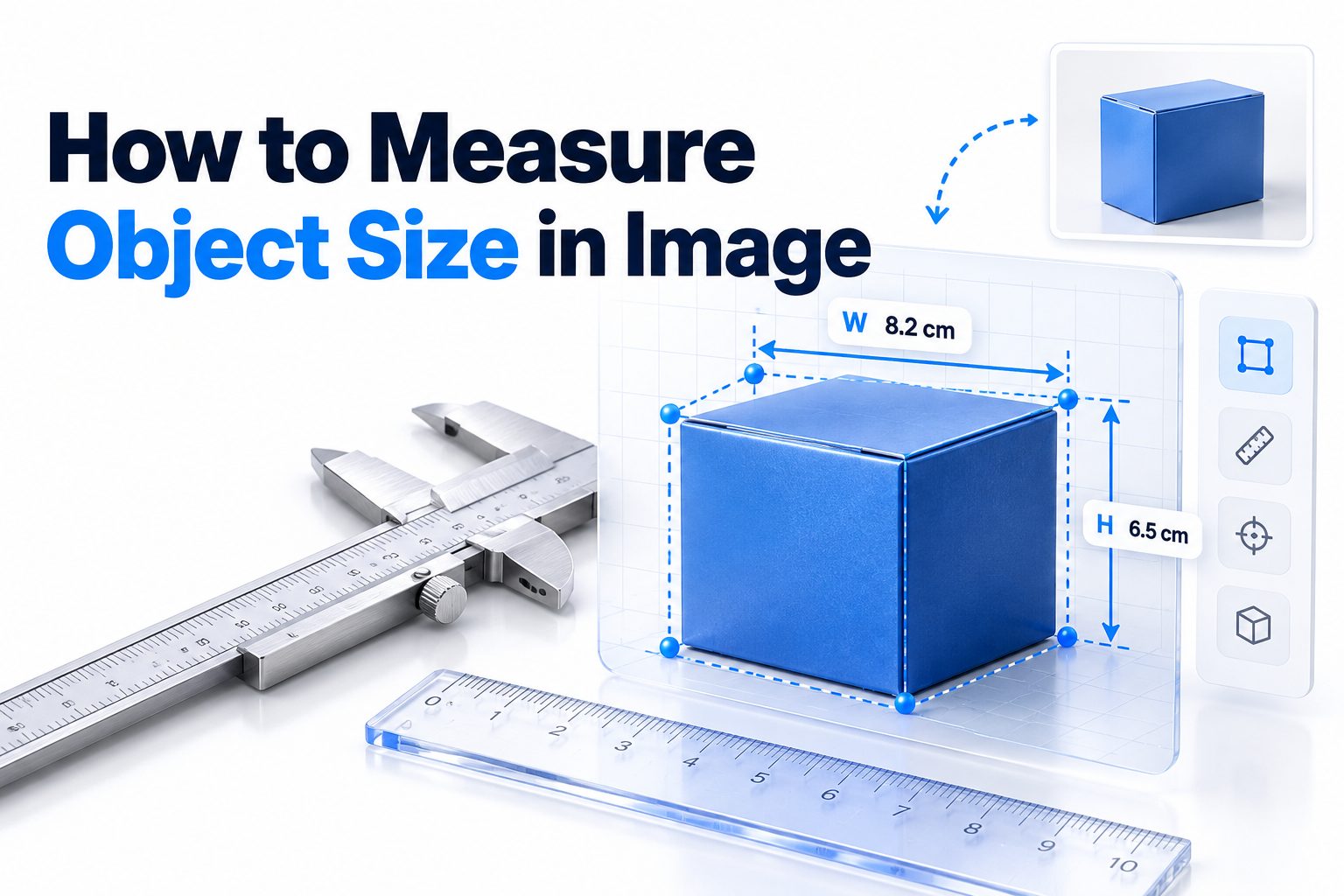
Measuring an object in a photograph is possible when the image contains a reliable reference, scale, or camera-calibration data. The basic approach is to compare the object’s pixel dimensions with something whose real-world dimensions are already known. Without that reference, a photo can reveal relative size in pixels, but usually not an accurate measurement in centimeters, inches, or other physical units.
Learning how to measure object size in image files is useful for product inspection, construction estimates, scientific research, medical imaging, manufacturing, mapping, and everyday tasks. The method can be as simple as placing a ruler beside the object, or as advanced as calibrating a camera and correcting lens distortion.
This article explains the practical measurement process, the pixel-to-unit calculation, suitable software, and the limitations caused by perspective and image quality. You will also learn how to choose a reference object, improve accuracy, measure irregular shapes, and troubleshoot results that do not match the object’s actual dimensions.
What Image Measurement Can Tell You
An image measurement can describe width, height, diameter, perimeter, area, or distance between selected points. The easiest result to obtain is a pixel measurement. Most image editors and analysis programs can report how many pixels lie between two points without requiring information about the real scene.
Converting those pixels into a physical unit requires a known scale. For example, if a 100-millimeter ruler occupies 500 pixels, the scale is five pixels per millimeter. An object measuring 350 pixels along the same plane would therefore be 70 millimeters long.
Relative Size Versus Real-World Size
Relative measurement compares objects within the image. You might determine that one package is twice as wide as another or that a scratch covers 15 percent of a surface. These comparisons can be useful even when the true dimensions are unknown.
Real-world measurement assigns a unit such as millimeters, centimeters, inches, or meters. It depends on a valid conversion factor. Camera distance, perspective, and depth affect that factor, so a scale taken from one part of an image may not apply accurately to another.
What You Need Before Measuring
A dependable measurement begins with a clear image and an appropriate reference. The reference could be a ruler, calibration target, coin, sheet of paper, machine component, or any other object with verified dimensions. Its measured edge should lie in the same plane as the target.
You also need software that can display pixel coordinates or measure a selected line. General image editors are adequate for straightforward length measurements. Scientific image-analysis programs are better when you need calibrated units, repeated measurements, areas, annotations, or exported results.
Measurement Preparation Checklist
- Confirm that the reference object’s real dimensions are known accurately.
- Place the reference beside the target rather than far in front of or behind it.
- Keep the camera sensor as parallel to the measurement surface as possible.
- Use the original image instead of a resized screenshot or compressed copy.
- Make sure both endpoints of the target are sharp and unobstructed.
- Check whether the software measures horizontal distance, vertical distance, or the true point-to-point line.
- Decide which unit and level of precision the final result requires.
- Retain the unedited image so the measurement can be checked later.
The Pixel-to-Real-World Conversion
The central calculation is a ratio between pixels and physical units. First, measure the reference in pixels. Divide that pixel length by the reference’s known physical length to obtain pixels per unit:
Scale = reference length in pixels ÷ reference length in
Suppose a 50-millimeter calibration marker measures 400 pixels. The scale is 8 pixels per millimeter. If the target measures 616 pixels, divide 616 by 8. Its estimated real-world length is 77 millimeters.
You can also calculate the physical size represented by one
Physical size per pixel = known reference length ÷
Using the same example, each pixel represents 0.125 millimeters. Multiplying the target’s 616 pixels by 0.125 produces the same 77-millimeter result.
Choosing a Suitable Reference Object
The best reference has verified dimensions, clear boundaries, and a size reasonably close to that of the target. A long reference usually reduces endpoint-selection error. If a one-pixel mistake is unavoidable, it has less influence on a 1,000-pixel calibration line than on a 20-pixel line.
Avoid relying on objects whose dimensions vary. Coins are often useful because their official diameters are standardized, but wear, image blur, or uncertainty about the denomination can still introduce error. Credit cards and standard paper sizes may work when they are flat and fully visible.
The reference must also occupy the same depth plane as the measured object. A ruler held closer to the camera appears larger and creates an incorrect conversion factor. For objects with substantial depth, one scale may not describe every surface accurately.
Step-by-Step Measurement Process
1. Select the best source image
Use the highest-resolution original available. Avoid social-media downloads, thumbnails, and screenshots when a full-resolution file exists. Confirm that the image has not been stretched disproportionately during editing or document insertion.
2. Identify the measurement plane
Decide which physical surface contains the dimension you want to measure. Position or select a reference on that same plane. For example, a ruler on the floor can scale floor dimensions, but it may not accurately scale an object elevated above it.
3. Measure the reference in pixels
Open the image in software with a line, ruler, or distance tool. Zoom in and place the endpoints on the known edges of the reference. Record its pixel length and the corresponding real-world length.
4. Calculate or set the scale
Divide the pixel length by the known dimension. Some programs let you enter both values and automatically assign units to the image. In simpler software, record the conversion factor and perform the calculation manually.
5. Measure the target
Draw a line between the target’s endpoints using the same image and measurement method. Divide the resulting pixel count by pixels per unit, or multiply it by the physical size represented by one pixel.
6. Repeat the measurement
Measure the reference and target at least twice. Slightly reposition the endpoints each time. A consistent result suggests that the edges are sufficiently clear; a wide spread indicates uncertainty that should be reported.
Controlling Perspective and Camera Angle
Perspective is one of the largest sources of error. Objects farther from the camera appear smaller, and rectangular surfaces can become trapezoidal when photographed at an angle. A single scale factor cannot fully correct an image when the target and reference occupy different depths.
For flat subjects, photograph the surface straight on. Center the lens over the measurement area and keep the camera’s sensor plane parallel to it. A tripod, copy stand, or overhead mount makes this easier and reduces motion blur.
When the photograph is already distorted, perspective-correction tools may help if the real surface is known to be rectangular. Marking its four corners allows some software to transform the surface into a front-facing view. This correction improves planar measurements, but it cannot recover hidden depth or reconstruct arbitrary three-dimensional shapes.
Reference Placement Quick Tips
- Position the reference immediately beside the object.
- Align it with the dimension being measured.
- Keep it flat against the same surface.
- Use a matte reference to prevent reflections from hiding its edges.
- Choose a scale long enough to cover a substantial portion of the image.
- Include multiple calibration markers when measuring a large surface.
- Photograph thick objects from the side for height and from above for length and width.
- Take separate views rather than expecting one angled photo to reveal all three dimensions.
Software Options for Image Measurement
Basic image editors can report selection width, line length, or cursor coordinates. They suit occasional measurements when you are comfortable calculating the scale manually. Check whether the program rounds pixel positions or applies interpolation while zooming.
ImageJ and Fiji are commonly used for calibrated scientific measurements. They allow a user to draw a line over a known distance, assign a unit, and measure other features in that unit. They can also calculate areas, perimeters, angles, and statistics across multiple regions.
Computer-aided design and geographic information system software may be more suitable for plans, aerial images, and maps. These applications can use known control points, coordinate systems, or drawing scales. For automated inspection, computer-vision libraries can detect contours and calculate object dimensions after calibration.
Choosing Software by Task
Task Suitable tool type Main advantage
Single width or height Image editor Fast pixel measurement
Scientific specimen ImageJ or Fiji Calibrated lengths and areas
Building plan CAD or PDF measurement tool Drawing-scale support
Map or aerial photograph GIS software Coordinate-based distance
Repeated product inspection Computer-vision system Automated measurements
Irregular object boundary Image-analysis software Contour, area, and perimeter tools
Perspective-heavy scene Photogrammetry software Multi-image reconstruction
For more detail on cleaning and preparing source files, see [Internal Link: Image Resolution and Quality].
Measuring Width, Height, Area, and Diameter
Width and height should be measured along clearly defined axes. A rotated object may require a line aligned with the object rather than the image’s horizontal or vertical direction. Bounding boxes can overstate dimensions when an item sits diagonally, so use an oriented measurement where possible.
Area requires a squared conversion factor. If one pixel represents 0.2 millimeters along each axis, one square pixel represents 0.04 square millimeters, not 0.2. Trace the object boundary, count the enclosed pixels, and multiply by the area represented by each pixel.
Circular objects can be measured by drawing a diameter through the center or fitting a circle to the visible edge. Fitting is often more reliable when the boundary is slightly blurred because it uses many edge points rather than depending on two manually selected endpoints.
Measuring Irregular Objects
Irregular shapes are usually handled with a polygon, freehand selection, or automated contour tool. Before tracing, improve edge visibility with sensible brightness or contrast adjustments. Keep the original file unchanged and avoid aggressive sharpening, which can create artificial boundaries.
A scale bar should remain valid for the entire traced region. If the object lies on a flat surface photographed at an angle, rectify the surface before calculating area. Measuring an uncorrected trapezoidal view can produce different scales at opposite ends of the same object.
For curved three-dimensional items, a single photograph normally measures only the projected silhouette. It cannot reveal the length of a curve wrapping around the object’s surface. A flexible tape, structured-light scanner, or multi-view photogrammetry workflow is more appropriate for true surface dimensions.
Improving Measurement Accuracy
Resolution affects how precisely an edge can be selected. If an object spans only ten pixels, a one-pixel endpoint error changes the result by roughly ten percent. When it spans 1,000 pixels, the same selection error has a much smaller proportional effect.
Sharp focus, even lighting, and strong edge contrast make endpoint placement more repeatable. Diffused lighting helps with reflective objects, while a contrasting background separates the target from its surroundings. Increasing digital zoom does not add detail; moving closer or using better optics does.
Lens distortion also matters, particularly near the edges of wide-angle images. Straight lines may bow outward or inward, changing local distances. Use lens-correction data when precision is important, and keep the target near the center of the frame when correction is unavailable.
Accuracy Do and Don’t List
Do
- Use a calibration target with certified or carefully verified dimensions.
- Record the scale, unit, software, and measurement method.
- Measure several times and report an average when appropriate.
- State a realistic uncertainty, such as 52.4 ± 0.5 millimeters.
- Calibrate again whenever camera distance, zoom, resolution, or cropping changes.
- Validate the process by measuring a second object of known size.
Don’t
- Assume file DPI determines the physical size of photographed objects.
- Use a reference positioned at a different distance from the lens.
- Report more decimal places than the image supports.
- measure a blurred shadow instead of the object’s actual edge.
- Treat a perspective-distorted scene as uniformly scaled.
- Enlarge a low-resolution image and assume it has become more accurate.
Common Problems and Their Solutions
A frequent mistake is confusing image resolution with scene scale. Metadata stating 300 DPI describes how an image may be printed or interpreted by software. It does not prove that 300 photographed pixels equal one inch on the real object.
Unexpected results can also come from resized images. Uniform resizing does not destroy an existing pixel ratio if both the reference and target remain in the same version. Nonuniform stretching changes horizontal and vertical scales differently, making a single conversion factor unreliable.
If repeated measurements vary, zoom in and inspect the endpoints. Blur, shadows, transparency, and rounded edges may make the boundary ambiguous. Define a consistent edge rule, such as measuring to the midpoint of a soft transition, and include that ambiguity in the uncertainty.
Common Measurement Mistakes
- Using a ruler that is tilted out of the object’s plane
- Measuring an object and reference from separate photographs
- Mixing pixels from a thumbnail with dimensions from the original image
- Ignoring perspective in an oblique camera view
- Applying a length scale directly to an area calculation
- Assuming a familiar object has standard dimensions without verification
- Selecting the outer shadow rather than the physical boundary
- Measuring a screen photo without accounting for display distortion
- Reporting exact dimensions from an image with no scale information
Measuring Without a Visible Reference
Without a known reference, you can reliably report only pixels or relative proportions. An object may occupy half the image width, but that does not reveal whether it is a small item photographed closely or a large item photographed from far away.
Camera metadata alone is rarely enough. Focal length and sensor size can help estimate dimensions only when camera-to-object distance, orientation, focus behavior, and scene geometry are also known. Missing or altered metadata makes this approach even less dependable.
Known scene features can sometimes serve as indirect references. Architectural plans, standardized tiles, machine specifications, or surveyed control points may provide a scale. Verify that the feature’s actual size is known and that it lies on the target’s plane before relying on it.
When no defensible reference exists, label the result as an estimate and explain the assumption. Guessing from common objects may be acceptable for informal use, but it should not support engineering, medical, legal, safety, or purchasing decisions.
Measurements from Multiple Images
Multiple photographs can reconstruct dimensions that one flat image cannot capture. Photogrammetry identifies matching features across overlapping views and estimates camera positions, depth, and three-dimensional geometry. A scale marker or known distance is still needed to convert the model into physical units.
For useful reconstruction, take sharp photographs around the object with substantial overlap. Keep lighting consistent, avoid moving the subject, and capture textured surfaces that software can match. Glossy, transparent, or uniformly colored objects are harder to reconstruct accurately.
Stereo camera systems use two synchronized viewpoints with known geometry to calculate depth. Industrial systems may combine calibrated cameras, laser lines, or structured light. These methods require more setup than a reference ruler, but they are better for thickness, volume, and changing production-line objects.
For related techniques involving automated edge detection and object recognition, see [Internal Link: Computer Vision Image Analysis].
Practical Example Using a Ruler
Imagine a photograph of a metal bracket beside a ruler. A clearly visible 100-millimeter section of the ruler spans 1,250 pixels. The scale is therefore 12.5 pixels per millimeter.
The bracket’s longest edge measures 875 pixels:
875 pixels ÷ 12.5 pixels per millimeter = 70 millimeters
Its width measures 437 pixels:
437 pixels ÷ 12.5 pixels per millimeter = 34.96 millimeters
Reporting the width as 34.96 millimeters may imply unrealistic precision. If the endpoints are blurred by several pixels, a result of approximately 35 millimeters is more honest.
Now suppose the bracket is several centimeters above the ruler. It sits closer to the camera and appears proportionally larger, so the calculation overestimates its dimensions. Placing the ruler at the same height as the measured edge, or photographing the bracket from a true side view, corrects the setup.
A Repeatable Workflow for Reliable Results
1. Define the exact dimension you need before taking the photograph.
2. Select a reference with verified dimensions and clear edges.
3. Place the reference in the target’s measurement plane.
4. Align the camera perpendicular to that plane.
5. Capture a sharp, high-resolution image with even lighting.
6. Correct known lens distortion when precision warrants it.
7. Measure the reference and establish the pixel scale.
8. Measure the target using the same tool and image version.
9. Repeat each measurement and compare the results.
10. Report the value, unit, assumptions, and estimated uncertainty.
This process creates an audit trail and makes the result easier to reproduce. For important work, save a copy of the image with measurement lines and labels while preserving the untouched source file.
Conclusion
The most reliable way to learn how to measure object size in image files is to treat the task as a scale conversion. Measure a known reference in pixels, calculate pixels per real-world unit, and apply that ratio to the target. The reference and target must lie on the same plane for the result to be credible.
Good photography matters as much as the calculation. A sharp, front-facing image with minimal lens distortion produces clearer edges and reduces perspective error. Repeating the measurement helps reveal endpoint uncertainty, while sensible rounding prevents the final number from appearing more precise than the evidence allows.
Simple image editors work well for occasional width or height checks. Calibrated analysis software is more efficient for areas, irregular outlines, repeated measurements, and documented results. If no valid scale or camera geometry is available, report dimensions in pixels or as relative proportions. Real-world units would otherwise be an unsupported estimate. The final takeaway is straightforward: use a trustworthy reference, control the image geometry, and report only the precision the photograph can genuinely support.
Frequently Asked Questions
Can I measure an object from any photo
You can measure its dimensions in pixels, but real-world measurements require a known reference or reliable camera geometry. If neither is available, any result in centimeters or inches is only an estimate based on assumptions.
Does image DPI determine an object’s real size?
No. DPI mainly describes printing or display interpretation and does not establish the scale of a photographed scene. You need a known distance within the image or calibrated information about the camera setup.
What is the best reference object for measurement?
A ruler or calibration target with verified dimensions is usually best. It should have clear markings, remain flat, and sit in the same plane as the object so perspective affects both equally.
How accurate are measurements taken from an image?
Accuracy depends on resolution, focus, perspective, lens distortion, reference quality, and endpoint selection. A carefully calibrated, front-facing image can be precise, while an angled or low-resolution photograph may support only a rough estimate.
Can I measure an irregular shape in a photo?
Yes. Calibrate the image, trace the boundary with a polygon or contour tool, and calculate area or perimeter. The object should be flat, clearly visible, and positioned in the same plane as the reference.